Troubleshooting
If you are having trouble with your eSpa, there are a few steps you can take to make troubleshooting easier. This guide will help you identify common issues and provide solutions to help you get your eSpa up and running. Once you've worked through the guidance on this page, if you're still having trouble, please visit the #troubleshooting channel on Discord for further assistance.
Run the Latest Version
The first thing you need to do whenever you run into a problem is ensure you are running the latest version of the software. The eSpa software is updated regularly to fix bugs and add new features, and will automatically update on its own, if configured to do so. To update your eSpa, follow the instructions in the Updating the Software guide.
Firmware Flashing Issues
If you're having trouble flashing firmware to your eSpa device (either initially or during updates), see the comprehensive Troubleshooting Platform.io Issues section in the Firmware Building guide. This covers common issues such as:
- Device not recognized by computer
- Failed connections and timeout errors
- Build and compilation errors
- Permission denied errors (Linux/Mac)
- "Timed out waiting for packet header" errors
- Out of memory issues
- Antivirus/firewall blocking
- Multiple devices connected
Status Lights
DIY Hardware
On DIY hardware, it is recommended that a single LED be included to indicate the status of the eSpa. With a single LED, there are different blink intervals used to indicate various error states. The following table shows the meaning of the different blink intervals:
| Blink Interval | Description |
|---|---|
| 100ms | Failed to connect to Wifi - check settings are correct. |
| 500ms | Failed to connect to MQTT server - check settings are correct. |
| 1000ms | Failed to connect to Spa pool - ensure cables are connected properly. |
| Solid On (no blink) | eSpa Wifi access point started and waiting for you to connect to it. |
eSpa v1 (Mini)
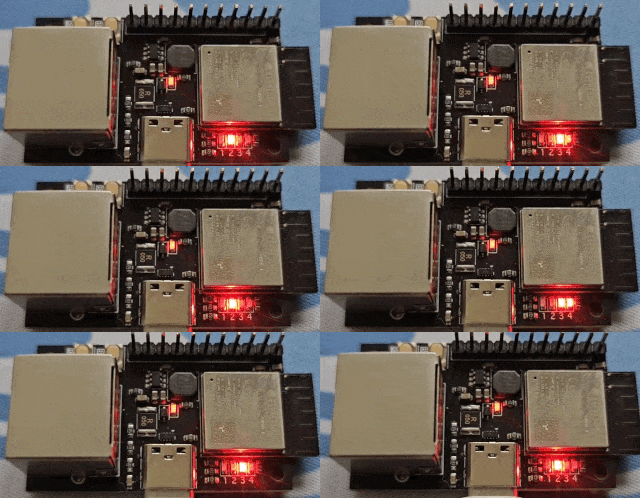
On the eSpa v1 (Mini) PCBs, there are four LEDs that are used for status indication. The LEDs are labelled 1, 2, 3, and 4. When everything is working fine, the four LEDs will light up in an animation going backwards and forwards. When one or more of the lights is lit up, it indicates an error condition, and you can refer to the table below to identify the issue:
| LED 1 | LED 2 | LED 3 | LED 4 | Description |
|---|---|---|---|---|
| ⚪ | ⚪ | ⚪ | 🔴 | Failed to connect to Wifi - check settings are correct. |
| ⚪ | ⚪ | 🔴 | ⚪ | Failed to connect to Spa pool - ensure cables are connected properly. |
| ⚪ | 🔴 | ⚪ | ⚪ | Failed to connect to MQTT server - check settings are correct. |
| 🔴 | 🔴 | 🔴 | 🔴 | eSpa Wifi access point started and waiting for you to connect to it. |
eSpa v2
The eSpa v2 has a single RGB LED that displays different colors and blink patterns to indicate the current status. When everything is working correctly, the LED will cycle through a rainbow animation. When there is an issue, the LED will display a specific color and blink pattern:
| Color | Animation | Description |
|---|---|---|
| 🌈 | Smooth color cycling | Normal operation - everything is working correctly. |
| 🔴 | Two quick pulses, then pause | Failed to connect to WiFi - check settings are correct. |
| 🟡 | Slowly fading in and out | Waiting for spa pool - ensure cables are connected properly. |
| 🟣 | Flickering with occasional bright flash | Failed to connect to MQTT server - check settings are correct. |
| 🔵 | Gently shifting between blue and cyan | eSpa WiFi access point started and waiting for you to connect to it. |
Web Interface
If you have managed to power up your eSpa and configure it to connect to your WiFi, but you're not getting any data in MQTT (or your home automation system), your spa pool controller might be outputting data in a format that we have not yet seen, which means the eSpa team will need to get the information from you to add support. This happens occasionally, as spa pool controllers have different hardware and firmware.
To check this, you can use the web interface of your eSpa, and click on the 'Spa Response' button to get a text dump from your spa pool. With this information, please visit the #troubleshooting channel on Discord and provide the information to the eSpa team.
Home Assistant and MQTT
If nothing appears in Home Assistant, first check the status LEDs and web interface to ensure eSpa is connected properly.
MQTT Explorer
MQTT Explorer is an invaluable tool for debugging MQTT issues. It lets you see all messages being published and helps identify connection problems.
- Download and install MQTT Explorer
- Connect to your MQTT broker using the same credentials as your eSpa
- Look for topics published by your eSpa (typically under
espa/or similar) - If you don't see any topics, your eSpa may not be connecting to MQTT correctly
- Check the MQTT broker logs to see if the eSpa is attempting to connect
Common MQTT Issues
No Topics Appearing:
- Verify MQTT credentials in eSpa's web interface
- Check that your MQTT broker is running and accessible
- Ensure firewall isn't blocking MQTT port (typically 1883)
- Check eSpa status LEDs - LED 2 indicates MQTT connection issues
Authentication Failures:
- Double-check username and password in eSpa settings
- Verify the MQTT user has publish/subscribe permissions
- Check MQTT broker logs for authentication errors
Home Assistant Not Discovering eSpa:
- Ensure MQTT integration is installed and configured in Home Assistant
- Check that Home Assistant is connecting to the same MQTT broker
- Look for discovery messages under
homeassistant/topic in MQTT Explorer - Try restarting eSpa to trigger discovery messages
Common Setup Issues
Can't Find eSpa WiFi Access Point
If you don't see the eSpa-wifi-AP network (default password: eSPA-Password):
- Check power: Ensure eSpa is receiving power from the spa controller
- Check status LEDs: All LEDs solid on (PCB) or single LED solid on (DIY) indicates AP mode
- Wait a moment: eSpa takes 10-20 seconds to boot and start AP mode
- Already configured: If eSpa was previously configured, it won't start in AP mode unless you reset it (see below)
- Check frequency: Make sure your device can see 2.4GHz networks (eSpa doesn't support 5GHz)
Resetting to Access Point Mode
To force eSpa back into access point mode (e.g., to change WiFi settings):
Method 1: Web Interface
- Browse to your eSpa's IP address
- Navigate to Settings
- Click "Reset WiFi Settings" or "Start AP Mode"
- eSpa will restart in AP mode
Method 2: Serial Console
- Connect via USB and open serial monitor
- Type
rand press Enter to reset WiFi settings - eSpa will restart in AP mode
eSpa Keeps Disconnecting from WiFi
If eSpa frequently loses WiFi connection:
- Signal strength: Move eSpa closer to WiFi router or use a WiFi extender
- Interference: Spa equipment can cause interference - try changing WiFi channel
- Router issues: Some routers have aggressive power-saving that disconnects idle devices
- IP conflicts: Assign a static IP to eSpa in your router's DHCP settings
- Power issues: Ensure stable power from spa controller
Can't Access Web Interface
If you can't reach the eSpa web interface:
- Find IP address: Check your router's DHCP client list
- Check same network: Ensure your computer/phone is on the same WiFi network
- Firewall: Temporarily disable firewall to test
- Use mDNS: Try
http://espa.local(may work on some networks) - Check status LEDs: Ensure eSpa is connected (animated pattern on PCB)
Spa Pool Connection Issues
No Data from Spa Pool
If eSpa connects to WiFi and MQTT but you're not getting spa data:
- Check cable: Ensure RJ-45 cable is fully seated in both eSpa and spa controller
- Verify EXP1 port: Make sure you're connected to the correct port on spa controller
- Check web interface: Click "Spa Response" button to see raw data from controller
- Status LEDs: LED 3 on indicates spa connection problems
- Try different cable: Some cables are wired for ethernet, not serial communication
Spa Commands Don't Work
If you can see spa status but can't control it:
- Read-only mode: Some spa controllers have the EXP1 port in read-only mode by default
- Permissions: Check if spa controller requires enabling remote control
- Timing: Commands may take 10-30 seconds to take effect
- Status refresh: Refresh the web interface or check MQTT messages to verify command was received
Unsupported Spa Controller
If you're getting garbled or no data from your spa:
- Click "Spa Response" in web interface to get raw data
- Take a photo or screenshot
- Join Discord and post in #troubleshooting
- Include your spa controller brand and model
- The eSpa team may need to add support for your specific controller
Collecting Logs
If you have a problem, we are likely going to want to see the debug logs. There are two ways to get the logs:
1. Telnet
Telnet allows you to connect to your eSpa over the network to view logs without needing a USB cable.
- Find your eSpa's IP address (check your router or the web interface)
- Choose your favourite telnet client:
- Windows: PuTTY, Windows Terminal, or built-in telnet client
- Mac/Linux: Use the built-in
telnetcommand in Terminal
- Connect to the eSpa IP address on port 23 (default telnet port):bash
telnet 192.168.1.100 - Once connected, you'll see log output
- Type
vand press Enter to enable verbose logging for more detailed output - Type
hand press Enter to see all available commands - Generate the problem and copy the logs
- Save logs to a file or paste into Discord for help
TIP
On Windows, you may need to enable the Telnet Client feature in "Turn Windows features on or off" before you can use telnet.
2. USB Serial Connection
Connecting via USB provides the most reliable way to see logs, especially during boot or if network connectivity is problematic.
- Connect the eSpa to your computer using a USB-C cable
- Use your favourite tool to connect to the eSpa's serial interface:
- VSCode: Built-in serial monitor or Platform.io extension
- Arduino IDE: Tools > Serial Monitor
- PuTTY: Select "Serial" connection type
- Screen (Mac/Linux):
screen /dev/tty.usbserial-* 115200 - Platform.io CLI:
pio device monitor
- Set baud rate to 115200 (important!)
- You should see log output immediately
- Type
vand press Enter to enable verbose logging - Type
hand press Enter to see all available commands - Generate the problem and copy the logs
Finding the Serial Port
Windows:
- Check Device Manager under "Ports (COM & LPT)"
- Look for "USB-SERIAL CH340" or "CP210x" or similar
- Note the COM port number (e.g., COM3)
Mac:
ls /dev/tty.usb*
# or
ls /dev/cu.usb*Linux:
ls /dev/ttyUSB*
# or
dmesg | grep tty
What to Include When Asking for Help
When posting logs to Discord for troubleshooting:
- eSpa hardware: Specify if you're using DIY or eSpa Mini v2
- Firmware version: Check web interface or boot logs
- Spa controller: Brand and model of your spa pool controller
- Problem description: What's not working and when it started
- Status LEDs: Current LED pattern (see chart above)
- Logs: Copy relevant log output, especially:
- Boot sequence
- Error messages
- Connection attempts
- Verbose logs (
vcommand) showing the specific problem
- Spa Response: If spa pool related, include output from "Spa Response" button in web interface
TIP
Before posting, try searching Discord for similar issues - your problem may already have a solution!
Advanced Debugging
Serial Commands
When connected via serial (USB or Telnet), you can use these commands:
v- Enable verbose loggingh- Show help and list available commandsr- Reset WiFi settings and restart in AP modei- Show system informations- Show current spa statusw- Show WiFi status
Checking Memory and Performance
If eSpa seems slow or unstable:
- Connect via serial or telnet
- Type
ito see system information including:- Free memory
- Uptime
- WiFi signal strength
- Firmware version
- Low free memory (under 10KB) may indicate a problem
- Check for messages about heap fragmentation
Factory Reset
If all else fails, you can perform a complete factory reset:
- Connect via serial (USB)
- Use Platform.io to erase flash completely:bash
pio run --target erase - Re-flash the firmware using web flash tool or Platform.io
- Reconfigure WiFi and MQTT settings
WARNING
Factory reset will erase all settings including WiFi, MQTT, and any customizations. You'll need to reconfigure everything from scratch.
Still Need Help?
If you've tried everything above and still have issues:
- Join the eSpa Discord
- Visit the #troubleshooting channel
- Provide all the information listed in "What to Include When Asking for Help" above
- Be patient - most community members are in different timezones
- Check back regularly for responses
The eSpa community is friendly and helpful - don't hesitate to ask for assistance!